Take reminder notes, fire and forget
An Apple Shortcuts + OpenAI agent that turns plain-language notes into Reminders and Calendar events so you can write once and stop copying tasks by hand.
I Got Tired of Copying Tasks from Notes to Reminders, So I Built an AI Agent Instead
I live in Apple Notes. It’s where I dump my brain during meetings, late-night ideas, and random thoughts.
But there is a major friction point: Actionability.
If I type "Do laundry at 6pm today" in Notes, it just sits there as dead text. To make it useful, I have to copy it, open the Reminders app, paste it, and manually fiddle with the date and time pickers and then also make sure its in my calendar, another app I frequently check.
I got frustrated with this manual sync. I wanted to just "write" and have my phone "do."
So, I built a bridge using Apple Shortcuts and the OpenAI API.
The Solution
The problem isn't moving text; the problem is understanding intent. Apple Shortcuts is great at moving data, but bad at understanding "next Tuesday."
I designed a workflow that acts as a "Translation Layer":
- Input: Takes the raw text from my Note via the Share Sheet or manually typing it.
- Intelligence: Sends that text to OpenAI to parse the natural language.
- Structure: The LLM returns a clean JSON object containing the
title,datetime, and determines if it goes toRemindersorCalendar. - Action: The Shortcut loops through that JSON and automatically creates the alerts.
The "Secret Sauce": The System Prompt
Here is the System Prompt that powers the agent:
You are a high-precision task parser.
Input: a plain-text note containing todo items and human scheduling hints.
Output: a pure JSON array (no explanatory text) of task objects using the schema below.
Use the user's timezone Europe/Amsterdam and resolve relative dates (today, tomorrow, next X days) into full ISO 8601 datetimes with timezone offsets.

Rules:
- If a line has multiple tasks separated by commas with common scheduling, produce separate objects for each task.
- If a task has two different times mentioned, create separate objects for each time.
- If the note only says a vague window: "morning" => 09:00, "afternoon" => 15:00, "evening" => 19:00 (Europe/Amsterdam).
- If only a day is mentioned with no time, set time to 09:00.
- If no date/time mentioned, set "datetime": null.
- Always return a valid JSON array only; no extra text.
- Always return an array (items inside [...]), even for one task.

Schema for each task object:
{
  "title": string,
  "datetime": string | null,      // ISO 8601 or null
  "reminder_list": string | null, // e.g. "Personal"
  "calendar": string | null,
  "notes": string | null,
  "tags": [string]
}
By defining "Morning" and "Evening" explicitly, I removed the AI's tendency to guess randomly. By enforcing an array structure, the Shortcut can handle a single note that contains 10 different tasks effortlessly.
The Result
Here is exactly what the Shortcut sees after I send it a note saying "Make toast at 6pm":
[
  {
    "title": "make toast",
    "datetime": "2025-12-03T18:00:00+01:00",
    "calendar": null,
    "tags": []
  }
]
You can also give it a spin with custom complex tasks like “Make toast at 6pm everyday this week. Add this only to the ‘Home’ calender and add relevant tags”. This will return the following schema
[
  {
    "title": "Make toast",
    "datetime": "2026-02-16T18:00:00+01:00",
    "reminder_list": null,
    "calendar": "Home",
    "notes": null,
    "tags": ["daily", "home", "toast"]
  },
  {
    "title": "Make toast",
    "datetime": "2026-02-17T18:00:00+01:00",
    "reminder_list": null,
    "calendar": "Home",
    "notes": null,
    "tags": ["daily", "home", "toast"]
  },
  {
    "title": "Make toast",
    "datetime": "2026-02-18T18:00:00+01:00",
    "reminder_list": null,
    "calendar": "Home",
    "notes": null,
    "tags": ["daily", "home", "toast"]
  },
  {
    "title": "Make toast",
    "datetime": "2026-02-19T18:00:00+01:00",
    "reminder_list": null,
    "calendar": "Home",
    "notes": null,
    "tags": ["daily", "home", "toast"]
  },
  {
    "title": "Make toast",
    "datetime": "2026-02-20T18:00:00+01:00",
    "reminder_list": null,
    "calendar": "Home",
    "notes": null,
    "tags": ["daily", "home", "toast"]
  },
  {
    "title": "Make toast",
    "datetime": "2026-02-21T18:00:00+01:00",
    "reminder_list": null,
    "calendar": "Home",
    "notes": null,
    "tags": ["daily", "home", "toast"]
  },
  {
    "title": "Make toast",
    "datetime": "2026-02-22T18:00:00+01:00",
    "reminder_list": null,
    "calendar": "Home",
    "notes": null,
    "tags": ["daily", "home", "toast"]
  }
]
and as a result add this reminder to the calender everyday of that week along with an additional entry to the “Home” calender with the tags.
Why This Matters
We often look for complex SaaS tools to manage our lives, but sometimes the best software is a dirty, custom script that connects the tools you already use.
Now, I don't "manage" my tasks. I just write them down, hit "Share," and trust that my future self will be reminded at the exact right time.
At several points, I considered building a proper application for this. A polished interface, settings screens, syncing logic, the usual path. But the more I thought about it, the more unnecessary that felt. Shortcuts already has something that third-party apps struggle to obtain: deep, native access to Reminders and Calendar. It lives inside the operating system’s trust boundary. By leaning on it instead of replacing it, I could avoid designing UI, handling permissions, maintaining background services, or worrying about platform quirks. The Shortcut doesn’t try to be a productivity app. It simply augments the one thing I was already using constantly: Notes.
Here’s a video demo showcasing the shortcut in action
How to Run the Shortcut (Step by Step)
A. One-time setup
-
Install the Shortcut from the iCloud link.
-
Open the Shortcut in the Shortcuts app on your Mac.
-
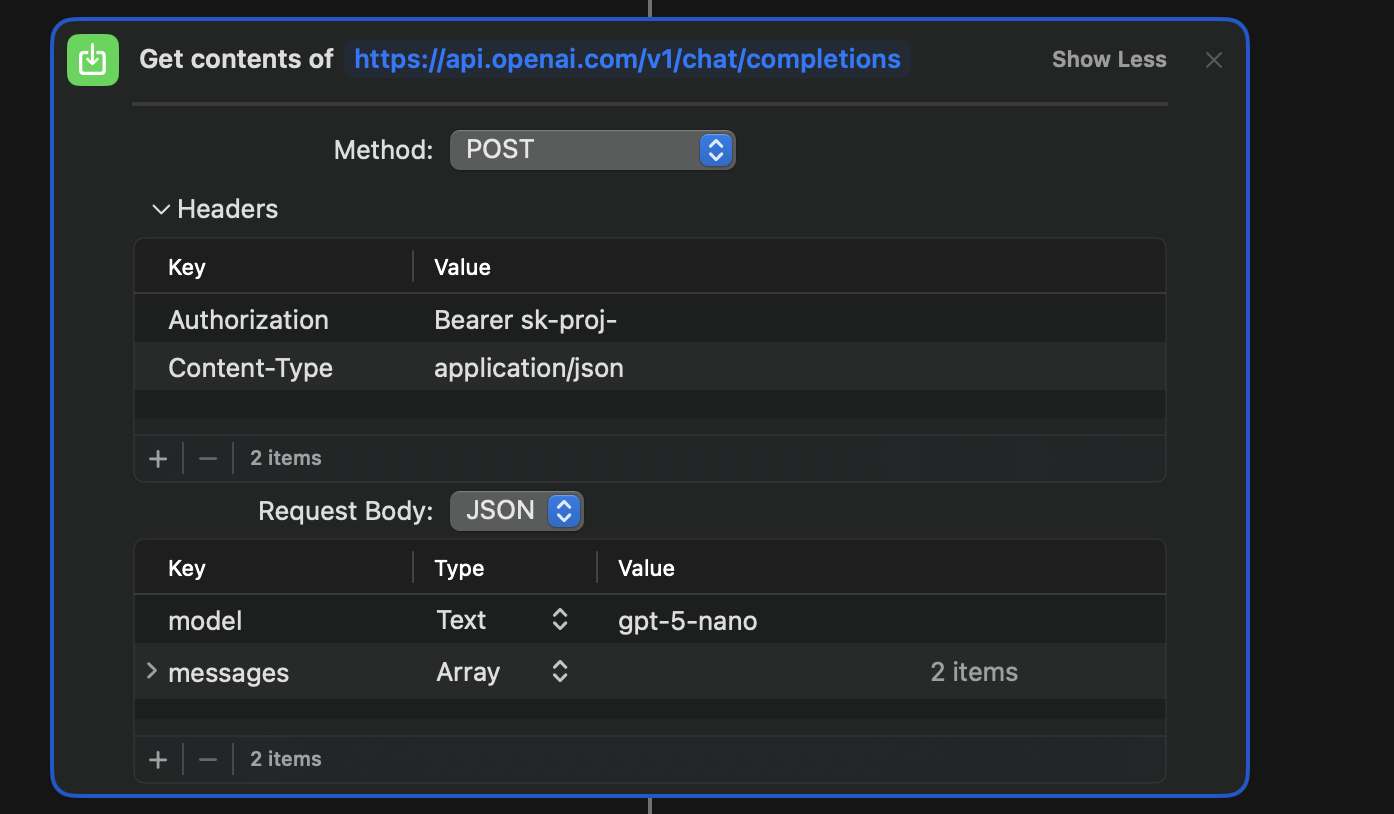
Find the action that says “Get contents of URL” (the one calling the OpenAI endpoint).
-
Open its Headers section.
-
Add your API key in the Authorization header as:
Authorization: Bearer YOUR_OPENAI_API_KEY
-
(Optional) In the same API call, set your preferred model if there’s a model field in the body (otherwise leave it as-is).
-
Run the Shortcut once from inside Shortcuts to make sure macOS asks for permissions.
-
When prompted, allow access to:
- Reminders
- Calendar
- (and anything else it requests, like Notes or clipboard)
B. Run it from Apple Notes (Services menu)
- Open Apple Notes.
- Write your tasks in plain English (one per line is easiest).
- Select the text you want to convert (Cmd+A if it’s the whole note).
- Right click the selection.
- Choose Services → Notes to Reminders (or whatever you named the Shortcut).
- Wait a few seconds while it runs.
- Open Reminders and/or Calendar — you should see the new items show up, tagged with
#shortcutgenerated.
C. Run it from the macOS menu bar (quick input popup)
- Open the Shortcuts app.
- Find your Shortcut and click the ⓘ (Info) button.
- Enable Pin in Menu Bar (or “Show in Menu Bar”, depending on macOS version).
- Now click the Shortcuts icon in the top menu bar.
- Select Notes to Reminders.
- A small popup appears — type or paste your text directly.
- Hit Run.
- Check Reminders/Calendar for the created items.
D. Quick sanity check (if nothing appears)
-
Open the Shortcut and confirm your API key is correct in Headers.
-
Run it once in the Shortcuts editor and watch for errors.
-
Check macOS settings:
-
System Settings → Privacy & Security → Reminders
-
System Settings → Privacy & Security → Calendar
Make sure Shortcuts is allowed.
-
-
Try a simple input like:
“Make toast at 6pm today”
to confirm the pipeline works end-to-end.
Closing Remarks
Hope this helps you become a 10x dev because the only thing between you and that promotion is one more optimisation pipeline to give you 5 more minutes of extra time to add shareholder value, which you would anyways use to scroll reels (apologies for projecting). But hey, as a 1x dev myself, if you, like me, spend 3 hours trying to build an automation pipeline for something than can manually take 5 minutes only to satisfy your broad ego, then you my friend are officially cracked.